
Lanier Technical College
HelpDesk Form: www.laniertech.edu/helpdesk or Email: helpdesk@laniertech.edu
Technical Support: 770-533-7048 Hours: M-Th 8a-6p, F 8a-12p
First Use
1. For your first use, login while on a Lanier Tech campus/site. If you do not do this, you will NOT be able to log in.
2. After your first login, you’ll need to open One Drive and sign-in to it. To sign into OneDrive, please follow the steps below.
- Click the Start menu

- Click Settings

- Click Accounts
 (left side)
 - Click Your accounts (middle)
- Click Add a work or school account (middle right)
- Sign into your LTC account as normal.
- After successfully signing in, click on the OneDrive icon
 (bottom right)
 - Click on Sign in

- A popup may appear showing the folders that’ll be backed-up. Wait for the 3 switches to turn blue. Then close the window.
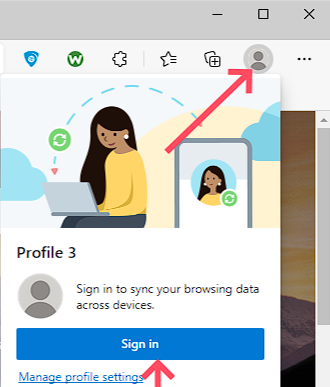
Note: If the above steps don’t work, please open Edge, click the login icon (top right or see example below), then log into your LTC account. Then log into OneDrive using the OneDrive icon  (bottom right), then follow steps 8 and 9 above.
Example:
At this point OneDrive should start syncing your files and folders.
Working Off Campus – VPN – Cisco Secure Client / AnyConnect
- Click the Windows’ Search bar

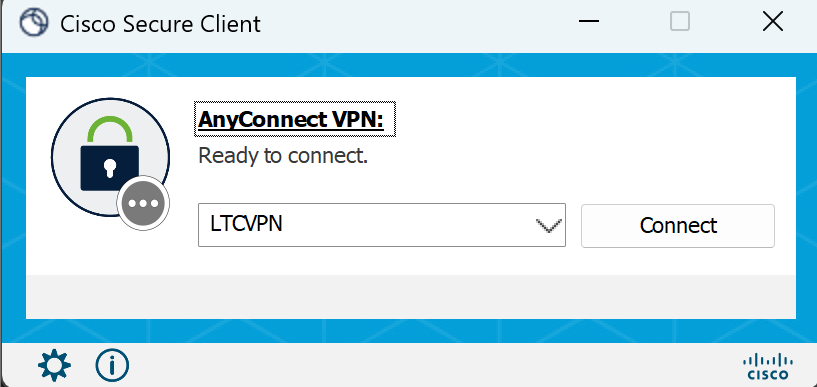
- Search for: Cisco Secure Client, open the app
- Click Connect
- Sign into your LTC account as normal
- The VPN should then connect.
If you run into any technical problems, please contact the LTC Help Desk at 770-533-7048
BCS101526