
Sign in with your student email account.
If you do not currently have any MFA authentication methods configured, upon your next sign in, you will be prompted to enroll in MFA. When prompted, choose setup under the Google Authenticator method.
* To set up the Passwords App as an additional authenticator, click your name in the upper right corner of the Laker Login Portal dashboard and choose Account Settings. Under Security Settings, click Setup next to the Google Authenticator method. *
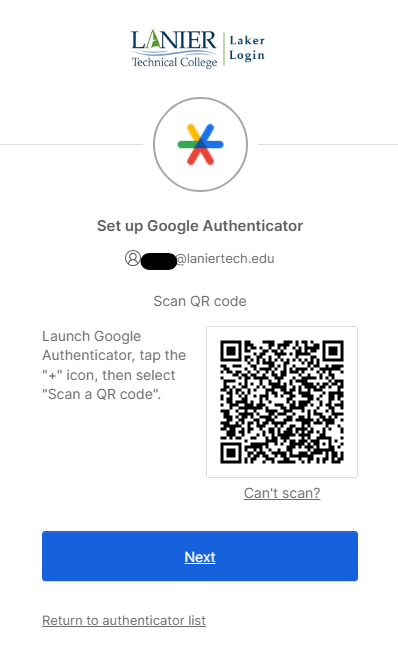
You should see the following screen:
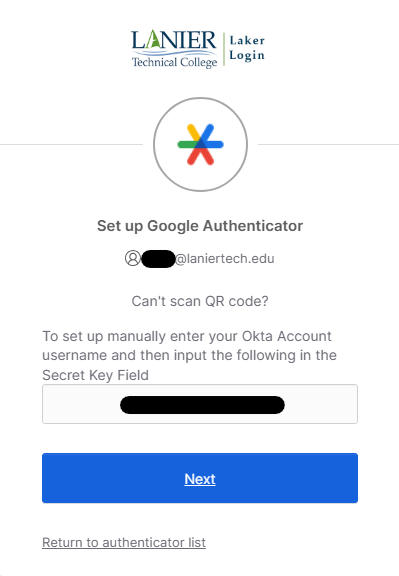
- Copy the setup code and proceed to open the Passwords App on your Mac
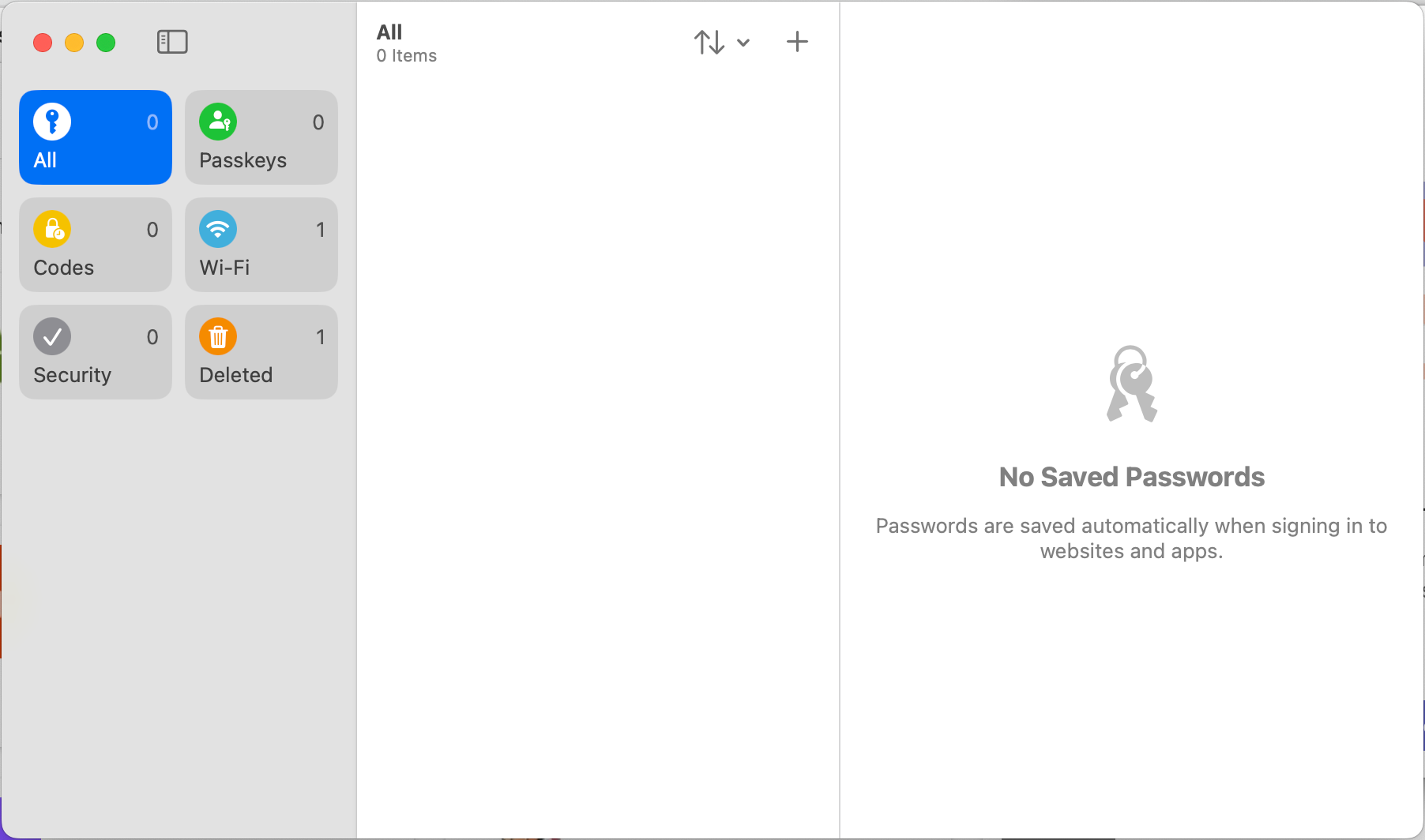
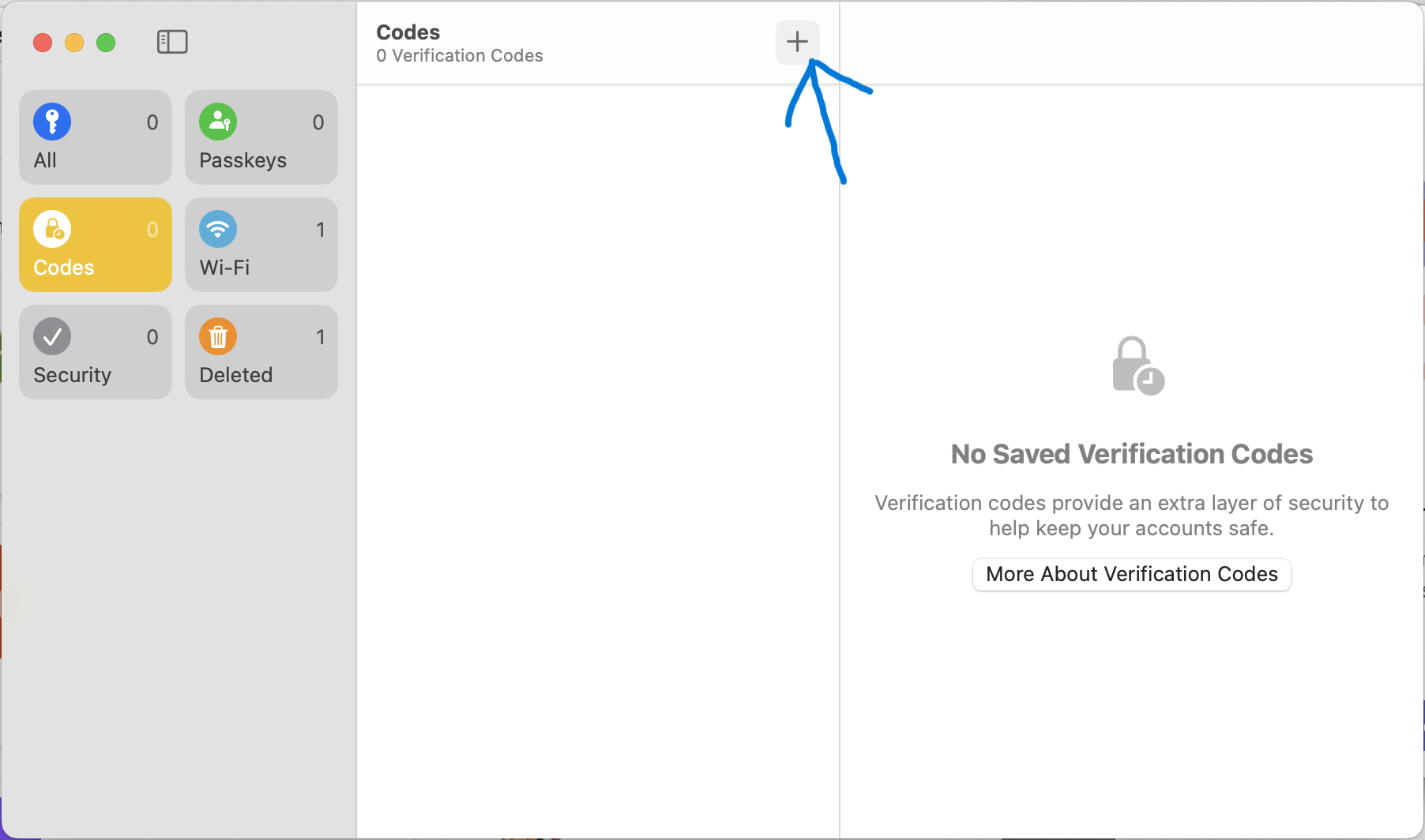
Select the Codes block:

Click the + (plus)
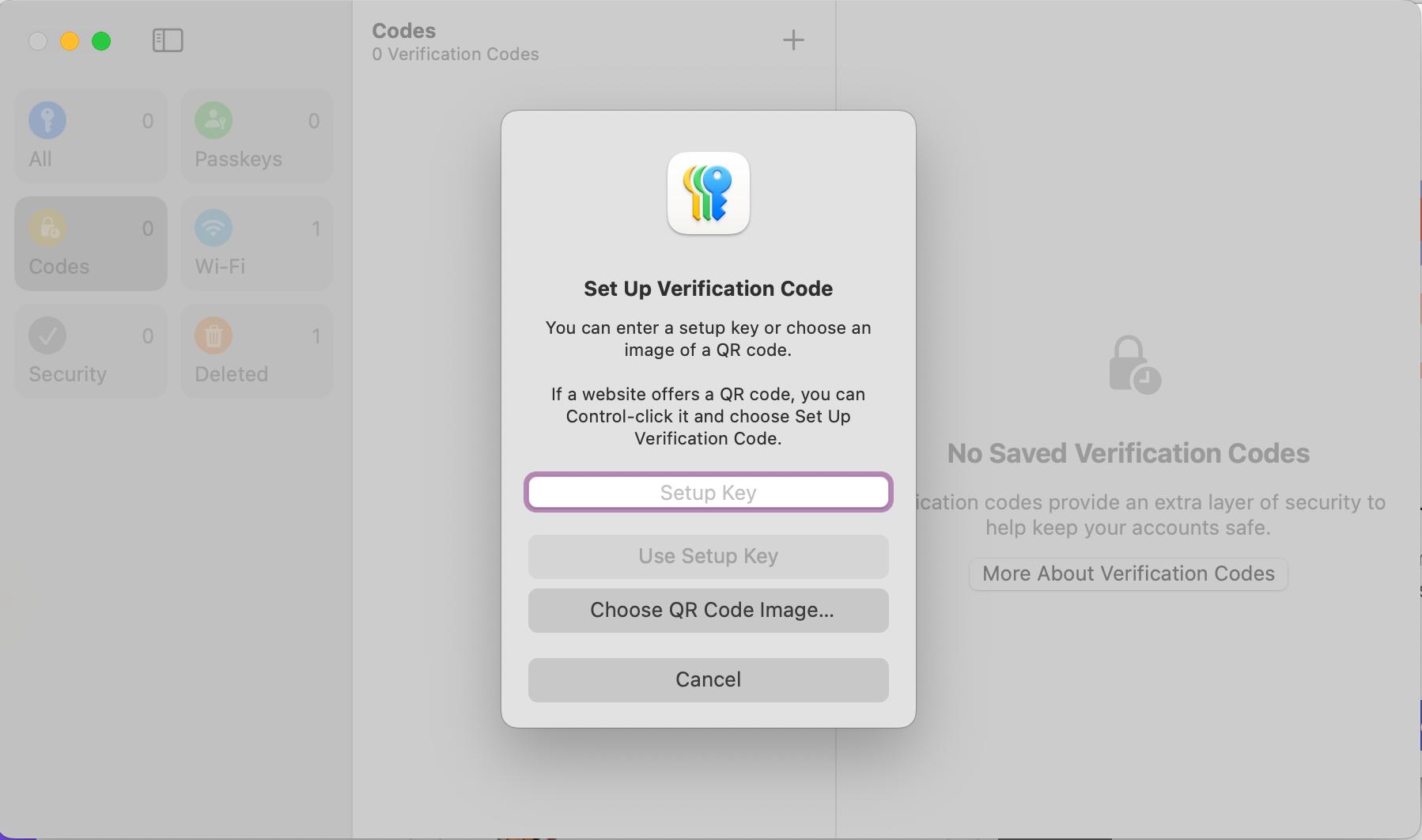
Use the setup code that you copied earlier from the Google Authenticator Set up screen and click Use Setup Key.
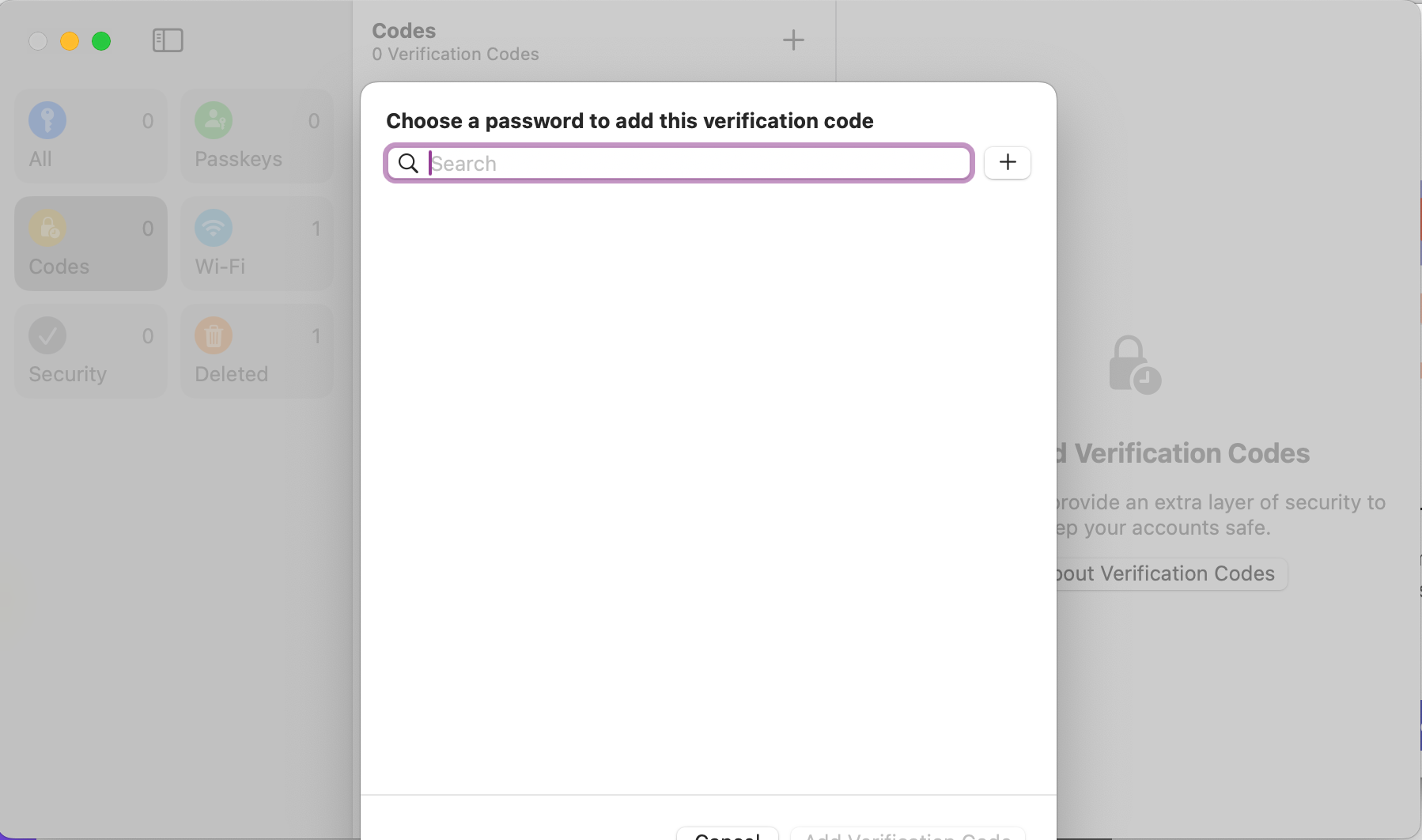
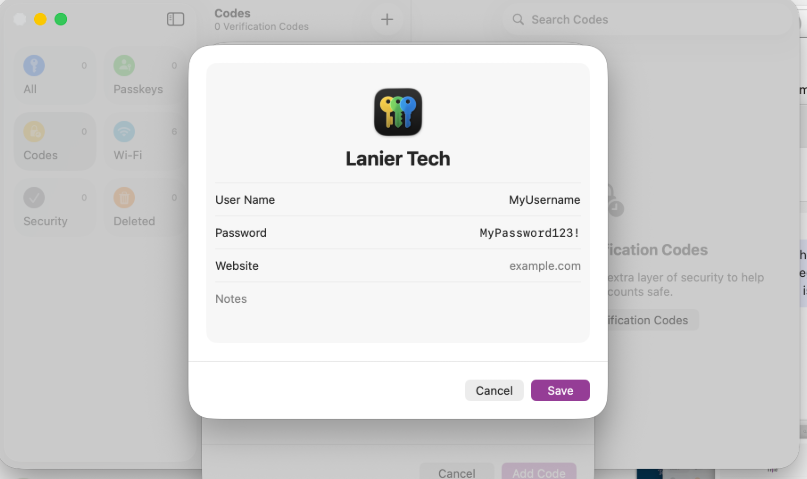
Create a password by pressing the + button
Edit the word Title and change it to a name you will recognize and associate with your Lanier Technical College account:
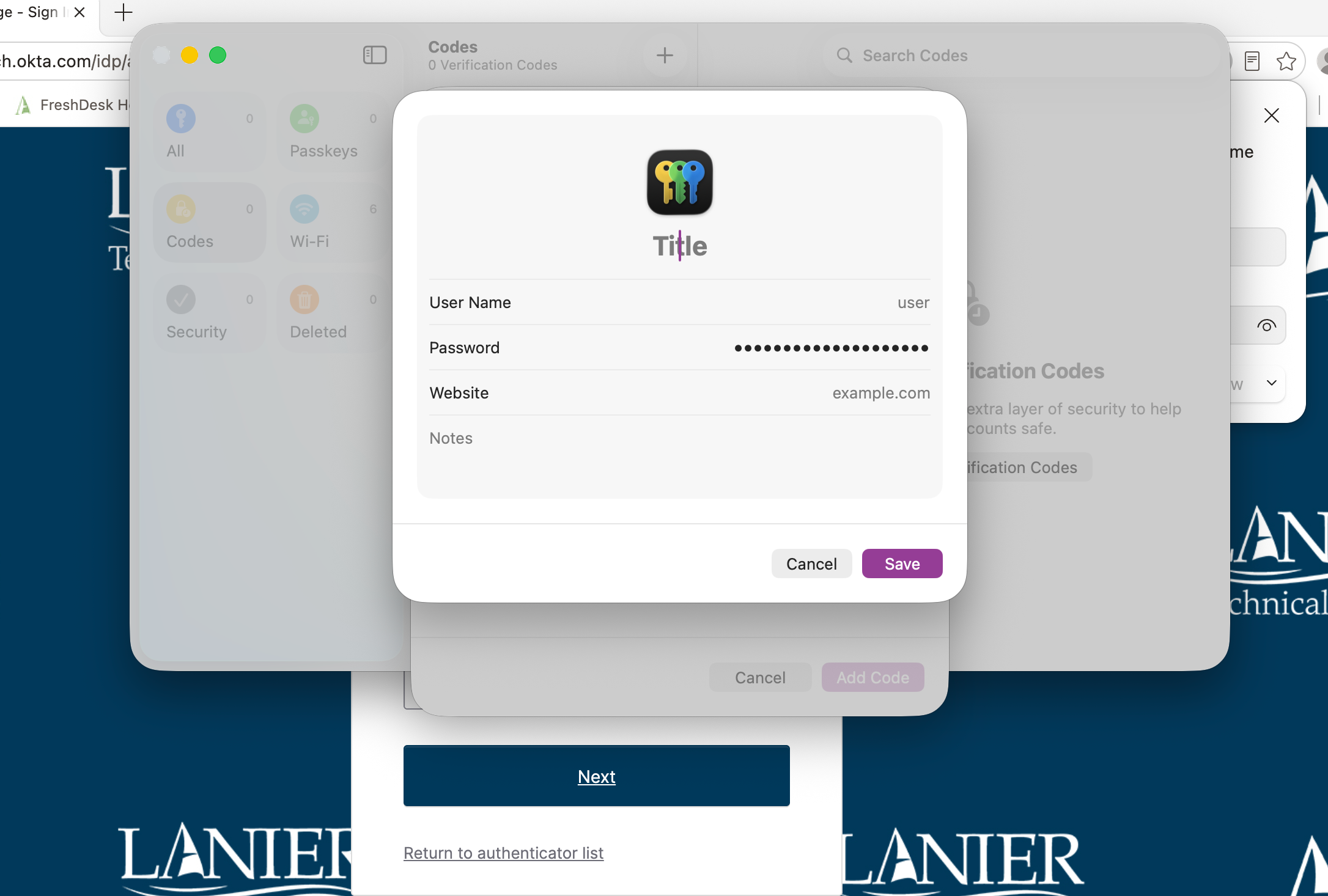
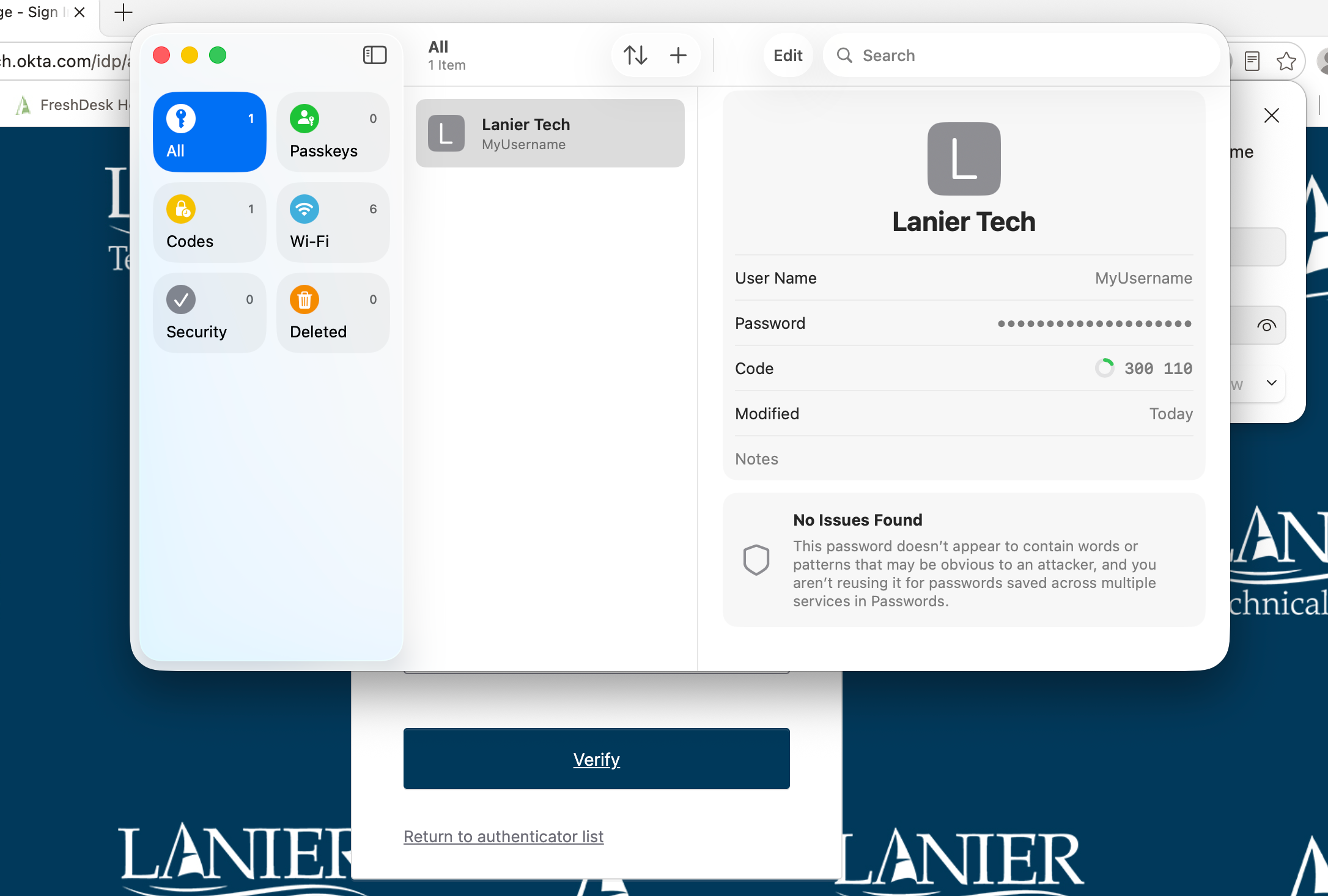
After the edit you should see something similar to the example below
You will see a rotating code (six digit code) in the field below the Password field. This will be used for your MFA authentication.
Enter your MFA code and click Verify to complete the registration of your PASSWORDS app on the Google Authenticator setup page (Laker Login Portal).
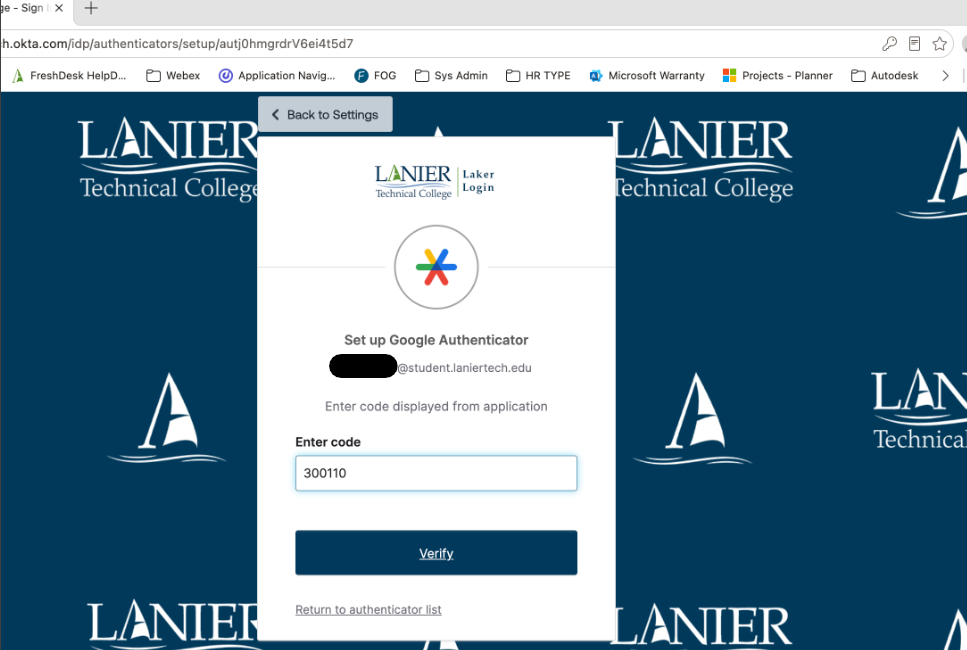
Note: If the rotating code you copied is not entered in a timely fashion, a new code will be produced that will render the one you copied invalid. Go back to the Passwords App to get the new code.
If everything was configured properly, you should now be able to use the Passwords App to authenticate to your Lanier Technical College account!