
Step 1: Download the Okta Verify App
- On your mobile device (smartphone or tablet), open your app store:
- Apple App Store (iPhone/iPad)
- Google Play Store (Android)
- Search for “Okta Verify”

- Install the app
Step 2: Go to the Laker Login Portal: https://login.laniertech.edu
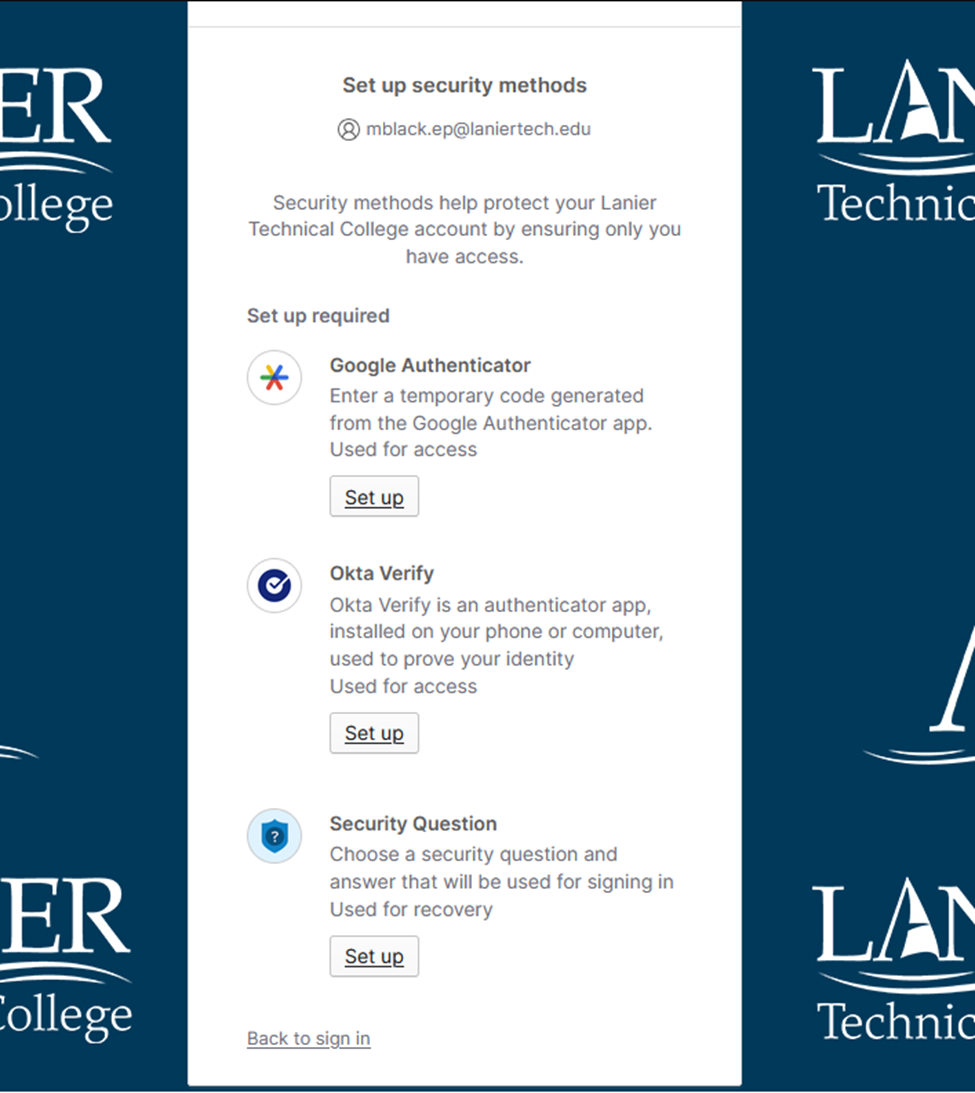
Step 3: Choose an Authentication Method
When prompted, select at least one authentication method.
- Recommended: Okta Verify
Step 4: Set Up Okta Verify
- On your computer, select “Okta Verify” as your authentication method
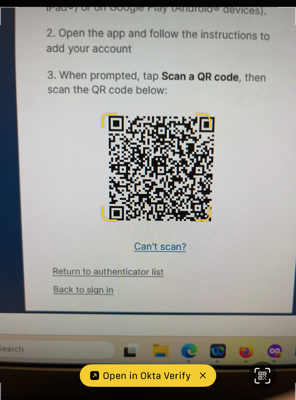
- A QR code will appear on your screen
A QR code will appear...
Step 5: Set Up Okta Verify on mobile device
Using your mobile device:
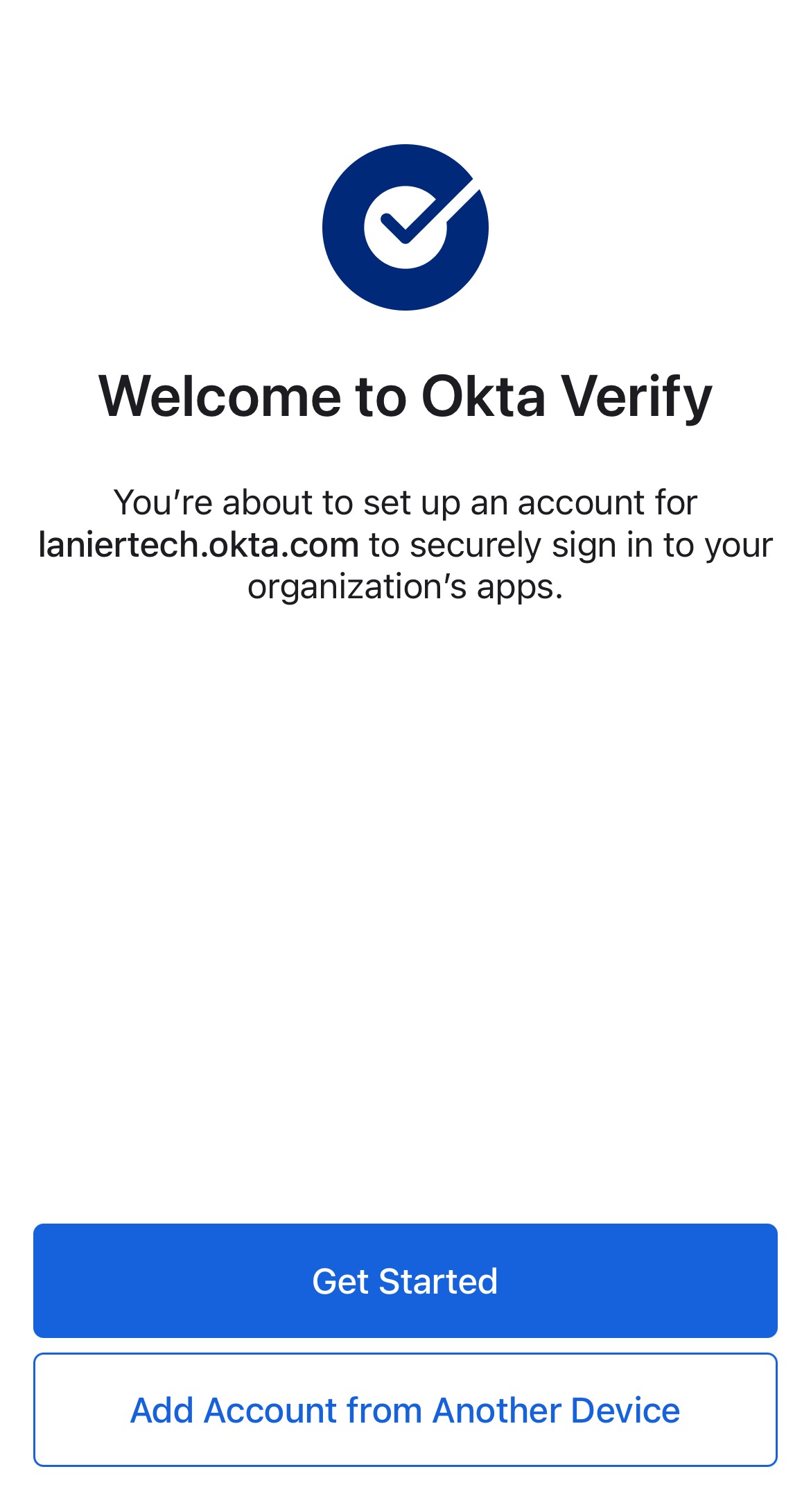
- Open the Okta Verify app
- Tap “Get Started”
- Choose Organization
- If prompted to set up from another device, choose "skip"
- Select "Yes, ready to scan" when prompted
- Use your phone’s camera to scan the QR code displayed on your computer screen
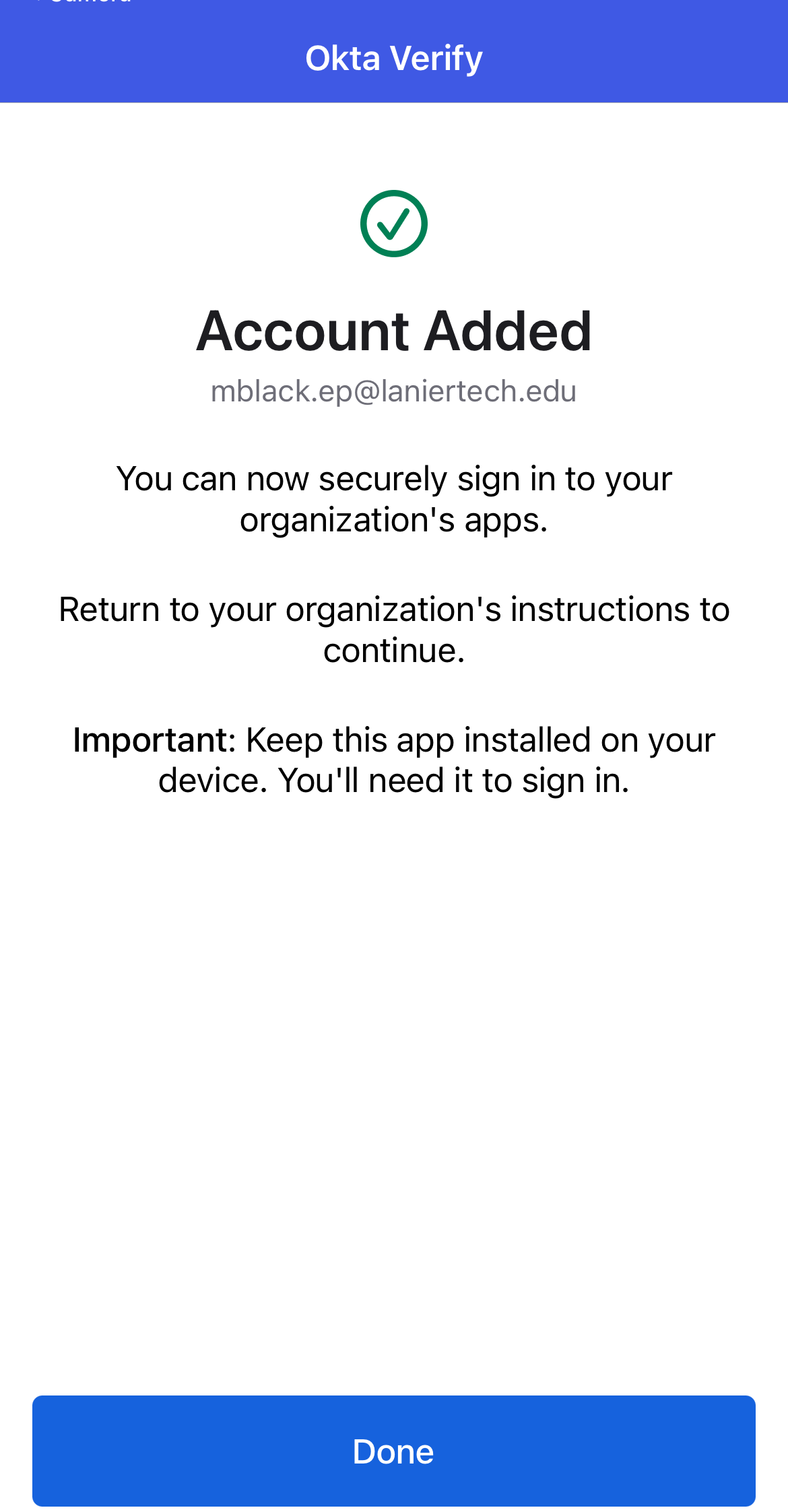
Step 6: Confirm You're Set Up
When setup is complete, you will see a message on your phone:
- Account Added
Step 7: Finish enrolling device
1. Go back to your browser on your PC
2. Confirm the code sent to your Okta Verify App
Step 8: Signing In Next Time
After setup, signing in will be quick and easy:
- Log in on your computer
- A notification will pop up on your phone
- Tap Yes, It’s Me to approve
* Important Security Reminder
- Only approve sign-in requests you started
- If you receive a request and you did nottry to log in:
- Do NOT tap Yes
- Call the Help Desk right away: 770-533-7048